
One clip, one Transcribe button
Use File, Link, or Record. Drop an MP3, WAV, M4A, or similar clip, import a direct file URL, or record in this tab, then press Transcribe. The transcript stays on this page so you can copy it or download a txt.
On this device · No upload · No account
Convert audio to text in this browser. Use File, Link, or Record. The speech model runs on your device and the audio is not uploaded.
Drop an audio file or click to select
MP3, WAV, M4A, OGG, FLAC, or WebM. One file. Nothing is uploaded. A computer can take about 200 MB or 20 minutes; phones keep a shorter clip.
Paste a direct file link. YouTube and other page links are not pulled here — save the file first, then use File.
00:00
The clip stays in this tab until you download it. Stop to transcribe. Auto writes the language you spoke; English faster is for English speech only.
Audio to text
Speech is converted on this device. A computer can prepare a larger model in the background after the page appears. Phones use a lighter model. The speech pass runs in this tab through WASM.
How should it write the words?
We automatically recognize your language and write the matching text. Speak French, get French. About 99 languages. Remembered on this device.
Processing…
0%
The first run on this device can take a little longer.
If this transcript is not good enough, open this same page on a computer. The desktop version is stronger.
Features
The homepage is the working tool. Add a file, a direct file URL, or a recording, see a progress bar while the speech model caches, then copy or download the transcript without leaving the tab.
Use File, Link, or Record. Drop an MP3, WAV, M4A, or similar clip, import a direct file URL, or record in this tab, then press Transcribe. The transcript stays on this page so you can copy it or download a txt.
The speech model runs in this tab through Transformers.js. Auto writes the language you spoke — about 99 languages from the official Whisper set. On a computer, English faster is a smaller English-only pass. Safari and iPhone fall back to WASM.
Audio stays in this browser. Nothing is posted to our server, you do not create a login, and the transcript is not stored after you close the tab.
After the pass finishes you can copy the text, download a .txt file, or open View for a larger dialog. Speaker labels and subtitle files are not offered on this page.
What it is
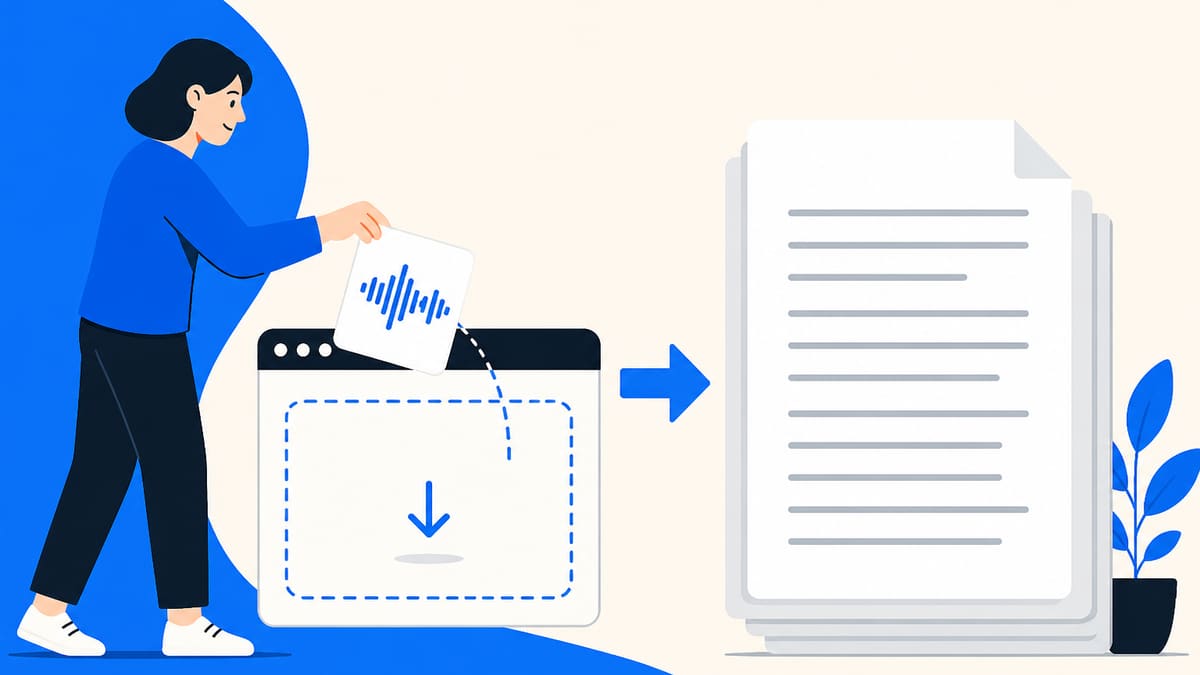
Audio to Text Online is a browser page that turns one clip into written lines with an on-device speech model. The model files come from our own host and run in this tab through Transformers.js. Auto writes the language you spoke — about 99 languages. WebGPU is used when the browser exposes it; Safari and iPhone fall back to WASM. Audio is not posted to our server and is not written to a log we keep after you leave.
This page is for a clip you already have, a direct file URL, or a recording in this tab. It does not fetch a YouTube page, label speakers, export SRT, summarize a meeting, or translate speech. If those jobs are what you need, this page is the wrong tool — we say so instead of pretending a queue exists behind the button.
How to use
Three on-page steps: add audio, press Transcribe, then copy or download the txt. Step 1 can be File, Link, or Record. Link only imports a direct file URL, not a YouTube page.
Step 1
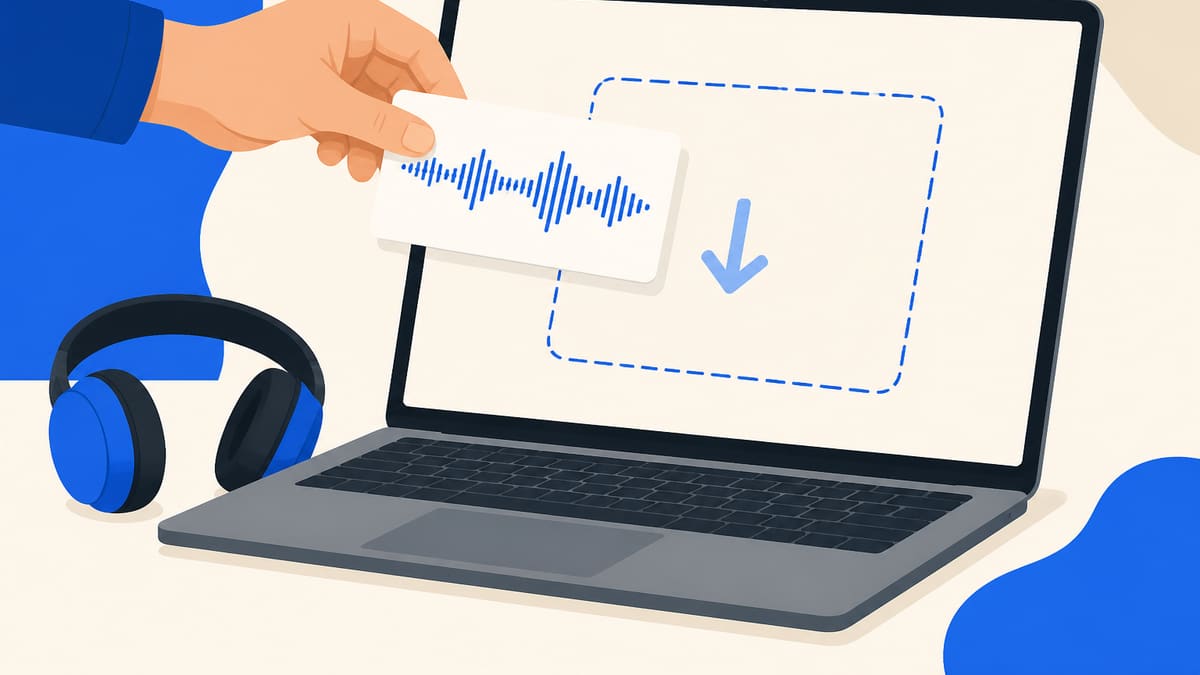
Drop a local clip, paste a direct audio or video file URL, or record in this tab. Keep it within the limit on the card. YouTube and other page links are not pulled.
Step 2
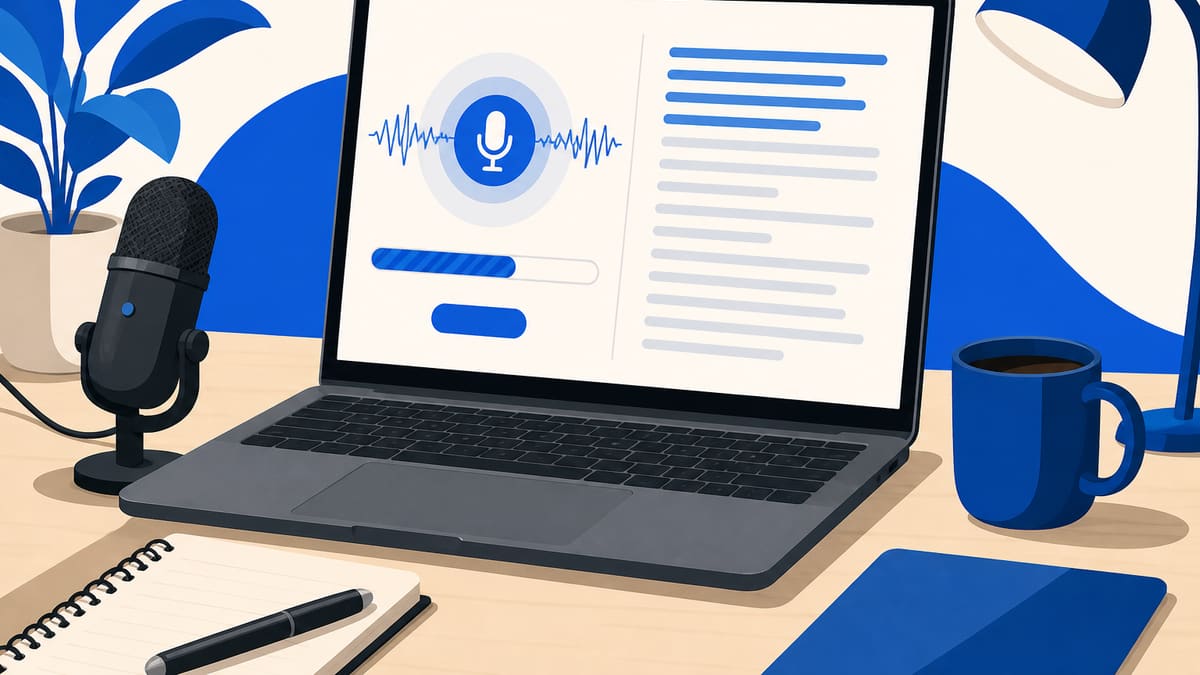
The first visit downloads an on-device speech model and caches it. A progress bar shows that wait. Later clips in the same browser skip the download unless you cleared site data.
Step 3
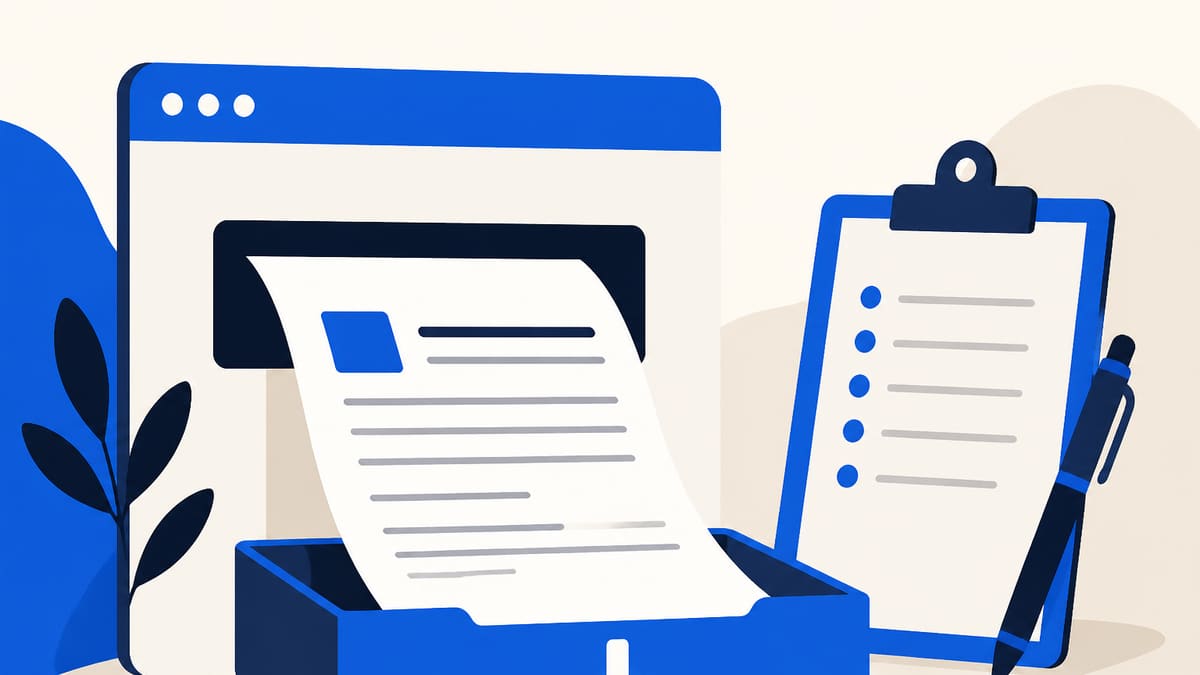
Confirm the filename, read the transcript here, then copy it or save a text file. Nothing is stored after you leave.
Why this page
Some converters upload the recording to a cluster. This page keeps the file, link import, or recording in the tab so a voice memo or interview clip does not become a hosted copy we can read later. The increment is privacy and honesty, not a longer feature list.
Some converters upload the recording to a cluster. This page keeps the file, link import, or recording in the tab so a voice memo or interview clip does not become a hosted copy we can read later.
Safari and iPhone still run the on-device model through WASM. The first visit is slower because the model downloads; later clips reuse the cache in this browser.
One clip, the limit shown on the card, Auto writes the spoken language. We do not claim realtime captions, speaker labels, SRT export, translation, or server-grade accuracy. Those extras belong to hosted tools, not this tab.
File, Link, and Record are on the card. Modes we do not ship — speakers, SRT, meeting bots — stay off the page instead of appearing as grey tiles you cannot click.
Tips
Practical notes so the first model download and the transcript stay predictable. These are limits, not marketing bullets: phones use a lighter model, the card shows the size cap, and a loud room will still read poorly.
Who uses this
People who already have a recording and need text they can edit. Each card is a real job with an input, a setting, an output, and a caveat — not a slogan. Use File, Link, or Record. We do not fetch a YouTube page or join a meeting.
You already recorded a thought on your phone and need lines you can paste into a note app without sending the clip to a host.
Input: One phone memo saved as M4A or MP3, within the limit on the card, already on the device — or recorded in this tab.
Setting: Default Transcribe. Auto writes the language you spoke. English faster on a computer is English-only. No speaker mode.
Output: A plain transcript on this page plus a txt you can paste into notes.
Caveat: Quiet speech works. Music beds and overlapping talk will come out messy.
You recorded a conversation yourself and want a first-pass transcript so you can clean names and quotes by hand.
Input: An interview you recorded as WAV or MP3, one file, under the limit on the card.
Setting: Press Transcribe once. Auto on a computer; phones always use Auto with the lighter model.
Output: One block of text on this page. Copy or download txt. No speaker columns.
Caveat: This page does not label speakers. You split turns yourself after the pass.
You already have a class clip on disk and want searchable words in the same tab, not a bot that joins the call.
Input: A lecture excerpt already saved locally as MP3, WAV, or M4A, or a direct file URL.
Setting: Card limit. Auto writes the spoken language. Link only imports a direct file URL, not a course page.
Output: Searchable text in this tab that you can copy into study notes.
Caveat: We do not fetch a course page or split a remote video. Save the audio first, or use a direct file URL.
FAQ
Use File, Link, or Record. Drop a local clip, import a direct audio or video file URL, or record in this tab. The speech model runs on this device and the transcript appears on the same page so you can copy it or save a txt file.
Yes. The browser reads the file or recording in this tab and feeds it only to the in-browser Whisper model. AudioToText.im does not post the audio to our server or keep a copy after you leave.
No login and no signup. Add audio and transcribe. The first visit downloads an on-device speech model and caches it in this browser so later clips skip that wait.
MP3, WAV, M4A, AAC, OGG, FLAC, and WebM work when the browser can decode them. Keep the clip within the limit shown on the card. Link imports a direct file URL. YouTube and other page links are not pulled here.
Yes. Phones use a lighter on-device model and automatically write the language you spoke. There is no Auto / English faster switch on a phone. The first model download can take a minute; later files reuse the cache. A computer can run a stronger pass if the phone transcript is not clean enough.
One file. A computer can take about 200 MB or 20 minutes — that pair is roughly a 20-minute uncompressed WAV. Phones stay around 80 MB or 10 minutes so the tab is less likely to lock up. Longer jobs belong to a hosted API, not this page.
The first visit downloads an on-device speech model from our own files and caches it in this browser. A computer can start that download after the page appears. Later files skip the wait unless you cleared site data. Switching Auto and English faster on a computer can fetch a second model once.
After Transcribe finishes, Download TXT saves a .txt file and Copy puts the same text on the clipboard. View opens a dialog on this page. If you recorded in this tab, you can also download the audio clip. Nothing is stored after you close the tab.
Auto recognizes the language you spoke and writes matching text — speak French, get French. Coverage is about 99 languages from the official Whisper set. We do not claim 100+ languages, and this page does not translate speech into English.
Yes on Auto. The tab listens to the clip, picks the spoken language, and writes that language. A computer remembers Auto or English faster on this device. Phones always use Auto with the lighter model.
On a computer, Auto is the multilingual pass. English faster is only for English speech; it is a smaller download and usually quicker. File, Link, and Record all use the choice you last picked. Phones hide this switch.
Yes. Open Record, allow the microphone, then stop when you are done. The clip stays in this tab until you download it. After you stop, the same tab transcribes it. Mic permission is required.
It is an on-device speech pass, not a studio caption desk. Quiet speech works better than music or overlapping talk. Auto keeps the spoken language; English faster is only for English. We do not claim server-grade or realtime accuracy.
No. Link only imports a direct audio or video file URL. It does not fetch a YouTube page, a chat export, or a cloud album. Save the audio first, then use File — or pick Dropbox if you already have the file there.
After the model is cached, the tab can transcribe without sending audio out. You still need the site files themselves if the tab is fresh or the cache was cleared.
No install and no extension. Open this page in a current browser, add a file, a direct link, or a recording, and transcribe. Inputs the decoder cannot read are skipped rather than guessed.
Speaker labels, SRT or VTT, summaries, and mind maps are not on this page. You get one plain transcript you can copy or download as txt.
If the browser can decode the soundtrack, a local video file or a direct video-file URL can work. We do not fetch or split a YouTube page or other site that is not a file.
Those editors have their own caption tools. AudioToText.im is a separate browser page: add audio here, then paste the txt wherever you already edit.
Add audio in the first viewport and press Transcribe. This link only scrolls there.
Convert audio to textYour feedback helps us make AudioToText.im better.

Thank you for your feedback